How to Set Up IPTV on Firestick (Beginner Guide 2026)
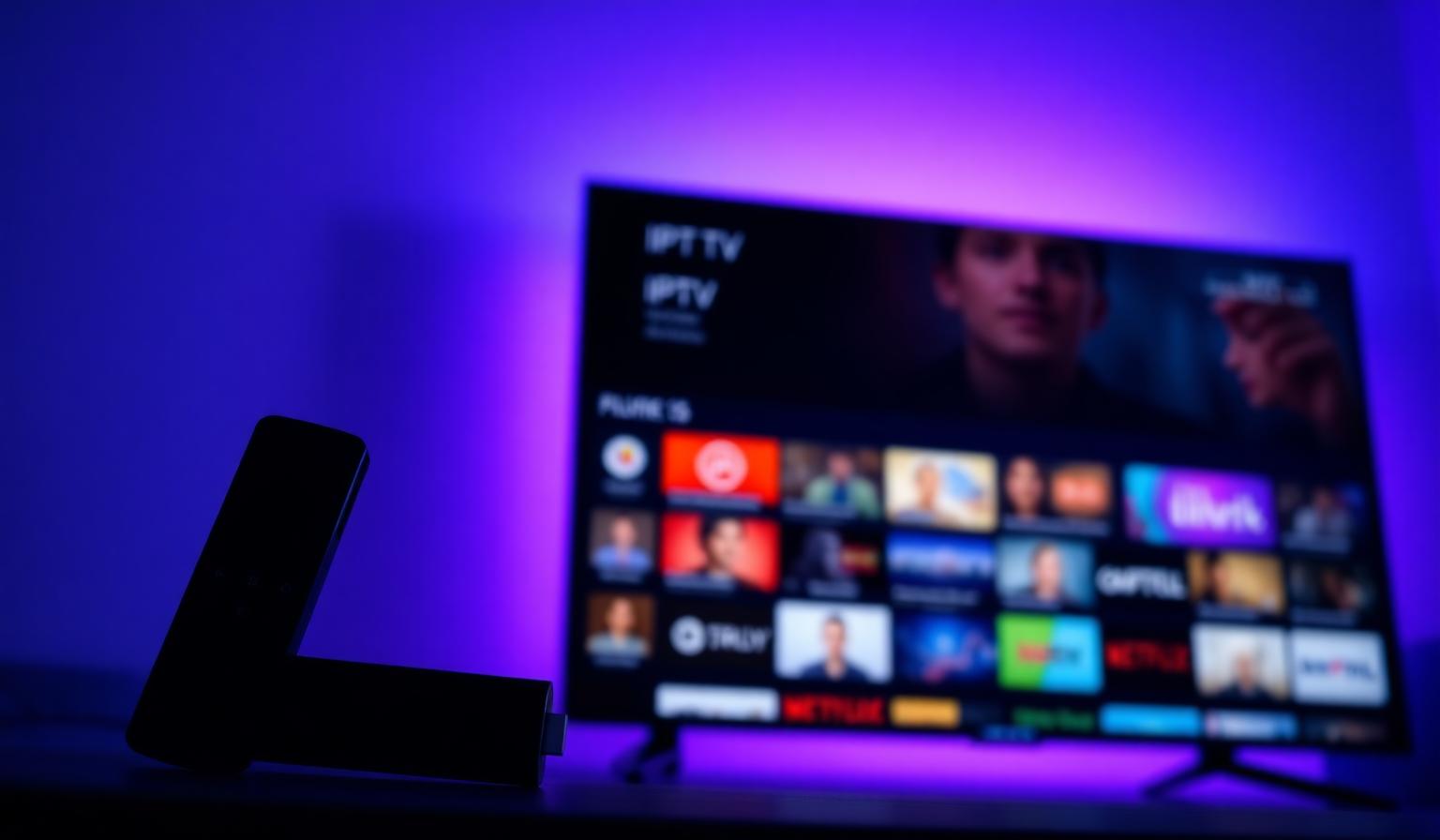
The Amazon Firestick has become one of the most popular ways to stream live TV, sports and on-demand content in 2026. Compact, affordable and packed with apps, it turns almost any television into a powerful streaming hub. If you've just signed up for an IPTV subscription — or you're thinking about it — learning how to set up IPTV on Firestick the right way will save you time, avoid buffering issues and unlock thousands of channels in just a few minutes. This beginner-friendly guide walks you through every step, from preparing your device to installing the best IPTV player and entering your login details, plus pro tips to keep everything running smoothly.
What Is IPTV and Why Use It on Firestick?
IPTV (Internet Protocol Television) is a way of delivering live TV channels and on-demand content over the internet instead of traditional cable or satellite. Combined with the Amazon Firestick, IPTV becomes a flexible streaming solution that works on virtually any modern TV with an HDMI port.
The Firestick is ideal for IPTV because it's portable, easy to install and supports all major IPTV player apps. Whether you have a Firestick Lite, 4K or 4K Max, the setup process is essentially the same.
Before You Start: What You'll Need
- An Amazon Firestick connected to your TV (any model)
- A stable internet connection — ideally 25 Mbps or higher for HD/4K streams
- Your IPTV subscription credentials (M3U URL or Xtream Codes username, password, and server URL)
- Your Amazon account signed in on the Firestick
- About 10 minutes of free time
Step-by-Step: How to Set Up IPTV on Firestick
Step 1 — Enable Apps from Unknown Sources
By default, Firestick only installs apps from the Amazon Appstore. To install third-party IPTV players, you'll need to allow installations from unknown sources:
- Open Settings from the Firestick home screen
- Go to My Fire TV → Developer Options
- Turn on Install unknown apps for the file manager you'll use (e.g., Downloader)
Step 2 — Install the Downloader App
Search for Downloader in the Firestick search bar, install it from the Amazon Appstore, and open it. Downloader lets you sideload IPTV player apps that aren't available in the official store.
Step 3 — Install Your Preferred IPTV Player
The two most trusted IPTV player apps in 2026 are:
- IPTV Smarters Pro — beginner friendly with a clean layout
- TiviMate — premium experience with advanced EPG features
Use Downloader to enter the official URL of your chosen player, install the APK, and open the app once installation is complete.
Step 4 — Add Your IPTV Subscription
Open your IPTV player and choose how you want to log in. Most providers offer two options:
- Xtream Codes API — enter your username, password and server URL (recommended)
- M3U Playlist URL — paste the playlist link provided in your welcome email
Wait a few seconds while the app loads your channels, EPG and VOD library. That's it — you're ready to stream.
Step 5 — Optimize Picture and Performance
- Set the player's stream format to HLS for better stability
- Adjust the buffer size if you're on slower Wi-Fi
- Use the 5GHz Wi-Fi band or an Ethernet adapter for 4K streams
- Restart your Firestick once a week to clear memory
Pros and Cons of Using IPTV on Firestick
- • Affordable, portable hardware
- • Works with all major IPTV player apps
- • Easy setup, even for beginners
- • Supports HD and 4K streaming
- • Take it with you when you travel
- • Lite model has limited storage
- • Wi-Fi-only (Ethernet needs adapter)
- • Older models can stutter on 4K
- • Sideloading requires a few extra steps
Best Practices and Pro Tips
- Keep your IPTV player updated — new versions fix bugs and improve EPG loading
- Avoid running too many background apps; close them from Settings → Applications
- Place the Firestick using the included HDMI extender for better Wi-Fi reception
- Save your favorite channels in the player to find them faster
- Use a wired Ethernet adapter for the most stable 4K experience
Troubleshooting Common Issues
If channels won't load, double-check your subscription credentials and make sure your Firestick has internet access. For buffering, switch to a 5GHz Wi-Fi network or reduce stream quality. If the EPG is missing, give the app a few minutes to download the guide on first launch.
Need a deeper walkthrough for other devices? Check our full IPTV setup guide, browse our subscription plans, or visit the FAQ page for quick answers to common questions.
Conclusion
Setting up IPTV on Firestick in 2026 is genuinely simple once you know the steps: enable unknown apps, install Downloader, add an IPTV player like IPTV Smarters Pro or TiviMate, and log in with your subscription details. With a stable internet connection and a few small tweaks, you'll enjoy thousands of channels, an up-to-date EPG and a smooth viewing experience on any TV. The Firestick remains one of the most reliable, beginner-friendly ways to enjoy modern streaming — and it pairs perfectly with a quality IPTV service.
Ready to start streaming?
Explore our subscription plans and get instant access to live TV, sports and a huge VOD library on any device.
View IPTV PlansFrequently Asked Questions
More from the blog
Complete guide to high quality streaming with VOD — best devices, internet speed needs, setup steps, pros & cons, and expert tips for the ultimate on-demand experience.
Complete guide to premium 4K streaming for IPTV — best devices, internet speed needs, HDR setup, pros & cons, and expert tips for stunning Ultra HD quality.