Best IPTV Apps for Laptop in Europe (2026)
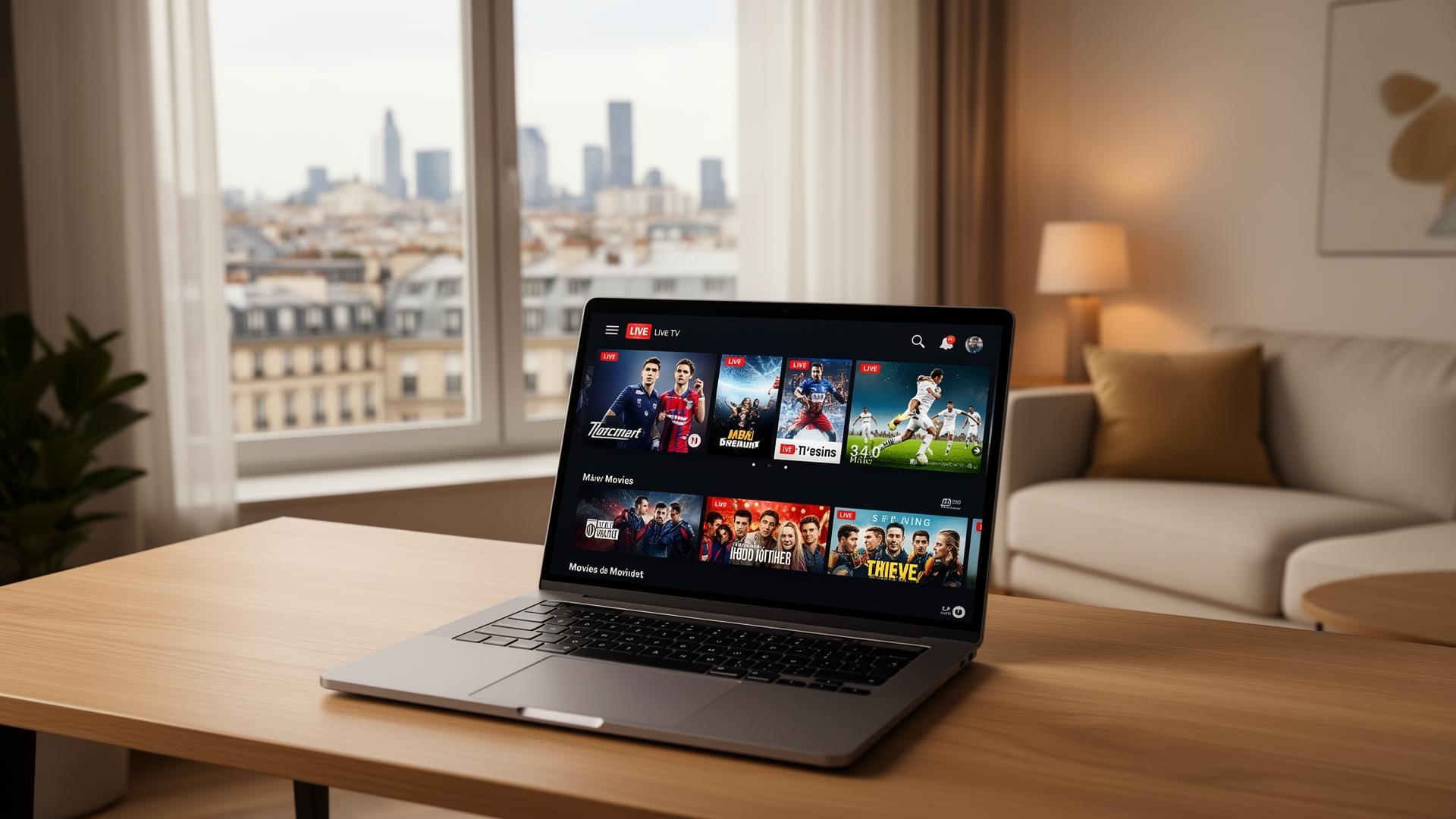
Laptops remain one of the most versatile devices for IPTV streaming in Europe. Whether you are working from a Berlin co-working space, relaxing in a Paris apartment, or traveling across the continent, your Windows, macOS or Linux laptop can become a powerful live TV and VOD center. In this guide, we explore the best IPTV apps for laptops in Europe in 2026, compare their features, walk you through installation, and share expert tips for smooth, high-quality streaming anywhere you go.
Why Laptops Are Ideal for IPTV in Europe
European viewers increasingly turn to laptops for IPTV because of their flexibility, power and portability. Here is why a laptop makes an excellent IPTV companion:
- Large, high-resolution screens — 13" to 17" Full HD and 4K displays for immersive viewing
- Powerful processors and RAM that handle multiple HD and 4K streams without lag
- Ethernet and Wi-Fi 6/7 connectivity for stable internet on the go
- Built-in recording and screenshot capabilities for saving favorite moments
- Multi-tasking — watch live sports in a window while working or browsing
- Easy VPN integration for privacy and geo-unblocking while traveling
- Keyboard shortcuts and mouse controls for fast channel navigation
Top IPTV Apps for Laptops in Europe
1. VLC Media Player
VLC Media Player is the world's most popular open-source media player — and it handles IPTV beautifully. Available for Windows, macOS and Linux, VLC plays M3U and M3U8 playlists natively, supports EPG via XMLTV, and offers advanced features like recording, subtitles, audio track selection and network streaming. Best of all, it is completely free.
- Native M3U and M3U8 playlist support with one-click loading
- EPG integration via XMLTV files for program guides
- Recording live streams directly to your hard drive
- Hardware acceleration for smooth 4K and HEVC playback
- Completely free, open-source and regularly updated
- Available on Windows, macOS, Linux and even BSD
2. IPTV Smarters Pro (Desktop)
IPTV Smarters Pro brings its famous multi-screen experience to laptops via its Windows and macOS desktop apps. It supports live TV, movies, series, catch-up TV and EPG in a clean, modern interface. The desktop version is optimized for keyboard and mouse navigation, with Picture-in-Picture mode, multi-window support and master search across all content categories.
- Live TV, movies, series and catch-up sections
- Multi-screen and Picture-in-Picture support
- EPG with recording reminders and program info
- Master search across channels, movies and series
- Parental controls and multiple user profiles
- Native Windows and macOS desktop apps
3. MyIPTV Player
MyIPTV Player is a lightweight, Windows-native IPTV app available from the Microsoft Store. It offers a simple channel list, EPG support, favorites management and recording. Its minimal design makes it perfect for users who want a straightforward, no-frills IPTV experience on their Windows laptop without complex configuration.
- Clean, minimal interface optimized for Windows laptops
- M3U playlist loading with automatic channel detection
- EPG support via XMLTV URLs
- Favorites and channel grouping
- Recording live TV to local storage
- Free download from the Microsoft Store
4. Kodi with PVR IPTV Simple Client
Kodi is the ultimate open-source media center for laptops. With the PVR IPTV Simple Client add-on, Kodi transforms into a full-featured IPTV player with EPG, channel logos, recording and a beautiful 10-foot interface. European users love Kodi for its endless customization, vast add-on library and support for every media format under the sun.
- Full PVR functionality with EPG, timers and recordings
- M3U and XMLTV playlist and guide support
- Beautiful, customizable skins and channel layouts
- Vast add-on ecosystem for additional content sources
- Cross-platform: Windows, macOS, Linux and even Raspberry Pi
- Completely free and community-driven
5. IPTVnator
IPTVnator is a modern, cross-platform IPTV player built with Electron. It offers a sleek dark-mode interface, M3U and Xtream Codes support, EPG integration, favorites and cloud playlist sync. It is particularly popular among European tech enthusiasts who want a contemporary, web-tech-based IPTV experience on their laptop.
- Modern, dark-themed UI with smooth animations
- M3U, M3U8 and Xtream Codes playlist support
- EPG integration with program details and reminders
- Favorites, recently watched and search
- Cloud playlist sync across devices
- Available for Windows, macOS and Linux
Step-by-Step: How to Set Up IPTV on Your Laptop
Step 1 — Download and Install Your IPTV App
- For VLC: visit videolan.org and download the installer for your OS.
- For IPTV Smarters Pro: download the Windows or macOS app from the official website.
- For MyIPTV Player: open the Microsoft Store, search "MyIPTV Player" and install.
- For Kodi: download from kodi.tv, install, then add the PVR IPTV Simple Client from Add-ons > My Add-ons > PVR Clients.
- For IPTVnator: download from GitHub releases or the official website for your OS.
Step 2 — Add Your IPTV Playlist
- Open your IPTV app and locate the Add Playlist, Open Network Stream or Load M3U option.
- Choose your playlist type: M3U URL or Xtream Codes API.
- For M3U: paste the M3U URL provided by your IPTV provider (e.g., http://provider.com/get.php?username=XXX&password=YYY&type=m3u_plus&output=ts).
- For Xtream Codes: enter the server URL, username and password from your provider dashboard.
- Name your playlist (e.g., "Europe IPTV") and wait for channels and EPG to load.
Step 3 — Optimize for the Best Experience
- Enable hardware acceleration in your app's settings for smoother 4K playback
- Adjust EPG timezone to your local European time (CET, GMT, EET, etc.)
- Create channel groups for Sports, News, Movies, Kids and International channels
- Mark favorite channels for quick access
- Set up recording folders with enough free disk space (at least 50 GB recommended)
- Configure subtitles and audio track preferences if your provider supports them
Pros and Cons of Using IPTV on a Laptop
Pros
- • Large, high-resolution screen for immersive viewing
- • Powerful hardware handles 4K and multi-tasking effortlessly
- • Easy recording and screenshot capabilities
- • Full keyboard and mouse control for fast navigation
- • VPN-friendly for privacy and geo-unblocking
- • Multi-tasking — watch while working or browsing
- • Wide app choice: VLC, Kodi, IPTV Smarters, IPTVnator and more
Cons
- • Less comfortable than a TV for long couch-viewing sessions
- • Battery drain during extended streaming (2–4 hours typical)
- • Built-in laptop speakers often lack TV soundbar quality
- • Smaller screen than a living room TV for group watching
- • Some apps require manual codec or plugin installation
- • Fan noise can be distracting during quiet scenes
Best Practices for Streaming IPTV on Laptops in Europe
- Use Ethernet when possible: If your laptop has an Ethernet port or USB-C adapter, wired connections deliver the most stable streams, especially during peak European viewing hours and live sports events.
- Connect external speakers or headphones: Laptop speakers are convenient but lack depth. A good pair of headphones or Bluetooth speakers dramatically improves the audio experience for movies and sports.
- Keep your apps and OS updated: Regular updates improve codec support, fix security vulnerabilities and ensure compatibility with the latest IPTV standards. Enable auto-updates for hassle-free maintenance.
- Use a VPN for privacy: A reputable VPN encrypts your traffic, prevents ISP throttling and protects your viewing habits. Choose a VPN with fast European servers for minimal speed loss.
- Manage recording storage: HD recordings can consume 3–6 GB per hour. Use an external SSD or NAS for long-term storage, and periodically clean up old recordings to free disk space.
- Choose a reliable European provider: Your streaming quality depends on your IPTV provider's server network. For advice on selecting a provider, see our IPTV provider selection guide.
Image Suggestions for Your Setup
If you are documenting or blogging about laptop IPTV setups, consider these visuals:
- Image 1 — Modern laptop showing VLC Media Player with IPTV channels: ALT text: "Sleek Windows laptop on a European home office desk displaying VLC Media Player with an IPTV channel guide, sports and news thumbnails, soft natural daylight from a large window"
- Image 2 — Kodi media center running on a laptop connected to a TV via HDMI: ALT text: "Laptop connected to a flatscreen TV via HDMI cable showing the Kodi media center interface with IPTV live channels and EPG, modern European living room setup"
- Image 3 — Multiple IPTV apps open on a macOS laptop desktop: ALT text: "MacBook Pro on a wooden desk showing IPTV Smarters Pro and IPTVnator apps side by side with European TV channels, warm coffee cup and wireless mouse nearby"
Conclusion
Laptops offer one of the most flexible and powerful ways to enjoy IPTV in Europe. With free apps like VLC Media Player and Kodi, professional tools like IPTV Smarters Pro and IPTVnator, and lightweight options like MyIPTV Player, there is a perfect solution for every user. Install your chosen app, load your playlist, optimize your network and display settings, and pair it with a reputable IPTV provider — and you will enjoy a premium streaming experience whether you are at home, in a cafe, or traveling across Europe.
Ready to stream on your laptop? Browse our subscription plans and get instant access to live TV, sports and movies across Europe — optimized for Windows, macOS and Linux laptops.
Ready to start streaming?
Explore our subscription plans and get instant access to live TV, sports and a huge VOD library on any device.
View IPTV PlansFrequently Asked Questions
More from the blog
Complete guide to high quality streaming with VOD — best devices, internet speed needs, setup steps, pros & cons, and expert tips for the ultimate on-demand experience.
Complete guide to premium 4K streaming for IPTV — best devices, internet speed needs, HDR setup, pros & cons, and expert tips for stunning Ultra HD quality.