How to Install IPTV on Android TV Easily (Beginner Guide 2026)
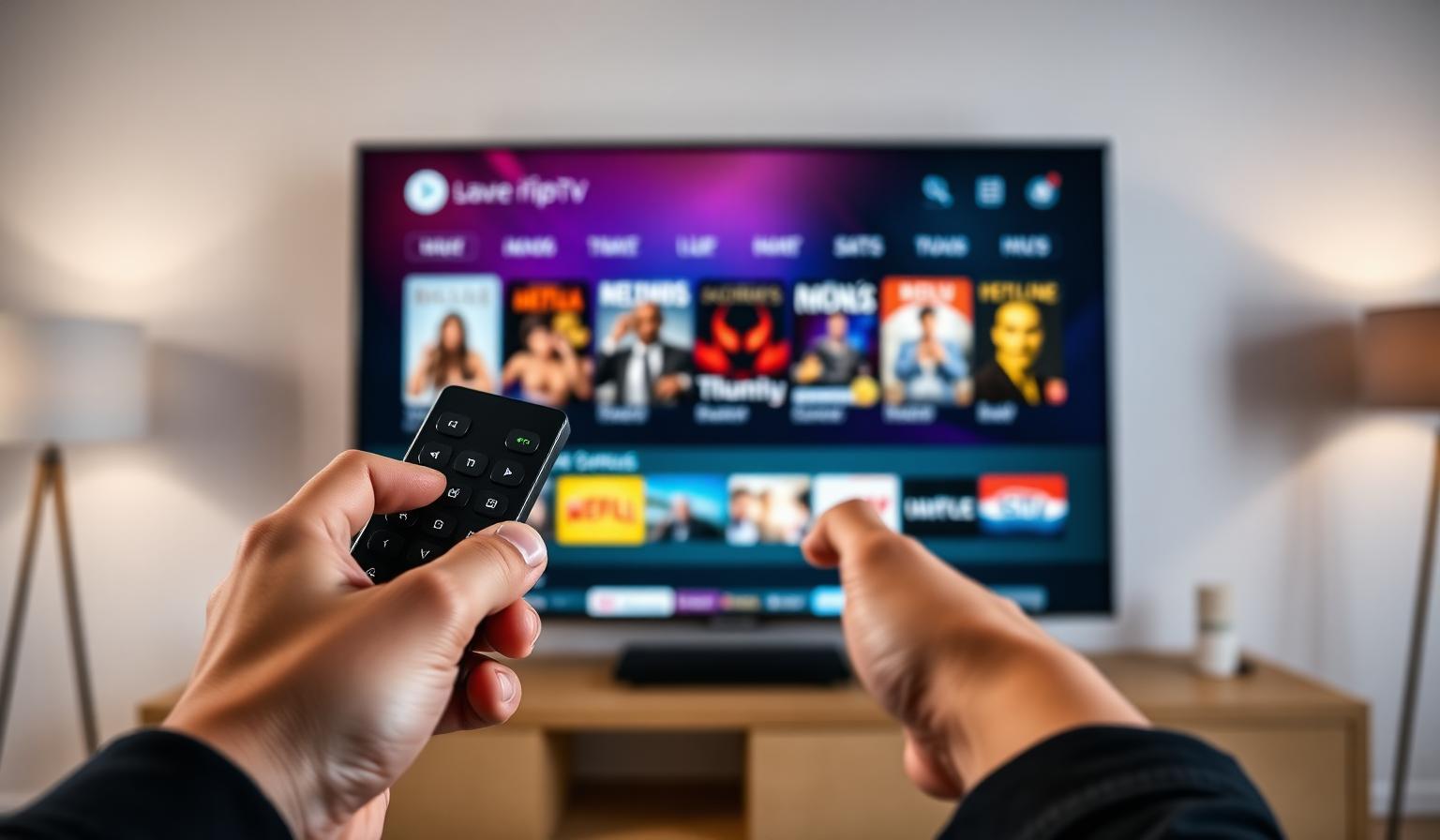
Android TV has quickly become one of the most flexible platforms for modern streaming, and IPTV fits right at home on it. Whether you own a Sony Bravia, a TCL Google TV, an Nvidia Shield, a Xiaomi Mi Box or a simple Chromecast with Google TV, learning how to install IPTV on Android TV unlocks thousands of live channels, sports, movies and on-demand content on a single device. This beginner-friendly guide for 2026 walks you through everything — from preparing your TV and choosing the right IPTV app to entering your subscription details and fine-tuning playback for a smooth, buffer-free experience on any modern Android TV.
Why Android TV Is a Great Choice for IPTV
Android TV (and its newer sibling, Google TV) runs a full version of the Google Play Store, supports modern streaming codecs, and works with virtually every IPTV player on the market. That makes it one of the easiest platforms for beginners — most popular IPTV apps can be installed in a few clicks, no sideloading required.
Combined with the platform's voice search, customizable home screen and support for 4K HDR, Android TV gives you a smart TV experience that pairs perfectly with a quality IPTV subscription.
Before You Start: What You'll Need
- An Android TV or Google TV device (smart TV, Mi Box, Shield, Chromecast with Google TV, etc.)
- A stable internet connection — at least 15 Mbps for HD and 25 Mbps for 4K streams
- A Google account signed in on the device
- Your IPTV subscription details (M3U URL or Xtream Codes login)
- Around 5–10 minutes for the full setup
Step-by-Step: How to Install IPTV on Android TV
Step 1 — Update Your Android TV
Before installing anything, make sure your device is running the latest software. Go to Settings → System → About → System update and install any pending updates. This avoids compatibility issues with newer IPTV apps and improves overall stability.
Step 2 — Open the Google Play Store
From the home screen, open the Google Play Store app. You'll use this to install your IPTV player directly — no sideloading needed for most popular apps.
Step 3 — Choose and Install Your IPTV Player
The most reliable IPTV players on Android TV in 2026 are:
- TiviMate — the gold standard for Android TV, with a polished interface and advanced EPG
- IPTV Smarters Pro — beginner friendly and quick to configure
- OTT Navigator — solid alternative with strong customization options
Search for the app of your choice in the Play Store, select it, and click Install. Once installed, open it from your home screen.
Step 4 — Add Your IPTV Subscription
Most IPTV players give you two ways to connect:
- Xtream Codes API — enter your username, password and server URL (recommended for the best EPG and VOD experience)
- M3U Playlist URL — paste the playlist link sent by your provider
Confirm and let the app load your channels, categories and EPG. You should see live TV, movies and series ready to play within seconds.
Step 5 — Optimize Playback and Picture Quality
- Set the video player to hardware decoder for smoother HD/4K playback
- Increase the buffer size slightly if your connection is unstable
- Connect via Ethernet or a 5GHz Wi-Fi band for the best results
- Enable auto frame rate in your TV's settings for smoother sports and movies
Pros and Cons of Using IPTV on Android TV
- • Native Google Play Store — no sideloading required
- • Wide selection of IPTV player apps
- • Voice search and Google Assistant support
- • Excellent 4K HDR playback
- • Works on TVs, boxes and dongles alike
- • Older Android TV models may run slower
- • UI varies slightly between manufacturers
- • Some apps are region-restricted in the Play Store
- • Cheaper boxes may struggle with 4K streams
Best Practices and Pro Tips
- Keep your IPTV app updated for the latest EPG and playback improvements
- Use a wired Ethernet connection for the most stable 4K streaming
- Reboot your Android TV once a week to clear memory and refresh background services
- Organize your channel list with favorites and custom groups inside your IPTV player
- Enable subtitles and audio track preferences in the app for a smoother experience
Troubleshooting Common Issues
If your IPTV app won't load channels, double-check your username, password and server URL — a single typo is the most common cause. For buffering, switch to a wired connection or a 5GHz Wi-Fi network and lower the stream quality. If the EPG looks empty, give the app a few minutes to download the guide on first launch, or trigger a manual refresh from the settings menu.
Want to compare devices or learn more about the platform? Read our Firestick setup guide, explore our IPTV subscription plans, or check the full how-to-use guide for other devices.
Conclusion
Installing IPTV on Android TV in 2026 is fast, beginner-friendly and doesn't require any technical experience. Update your device, install a trusted IPTV player like TiviMate or IPTV Smarters Pro from the Google Play Store, log in with your subscription details and you're ready to enjoy thousands of live channels, sports and on-demand content in stunning quality. With a stable internet connection and the small optimizations from this guide, your Android TV becomes a complete home entertainment hub — flexible, modern and easy to use every single day.
Ready to start streaming?
Explore our subscription plans and get instant access to live TV, sports and a huge VOD library on any device.
View IPTV PlansFrequently Asked Questions
More from the blog
Complete guide to high quality streaming with VOD — best devices, internet speed needs, setup steps, pros & cons, and expert tips for the ultimate on-demand experience.
Complete guide to premium 4K streaming for IPTV — best devices, internet speed needs, HDR setup, pros & cons, and expert tips for stunning Ultra HD quality.