IPTV Setup Guide for Smart TVs (Samsung & LG)
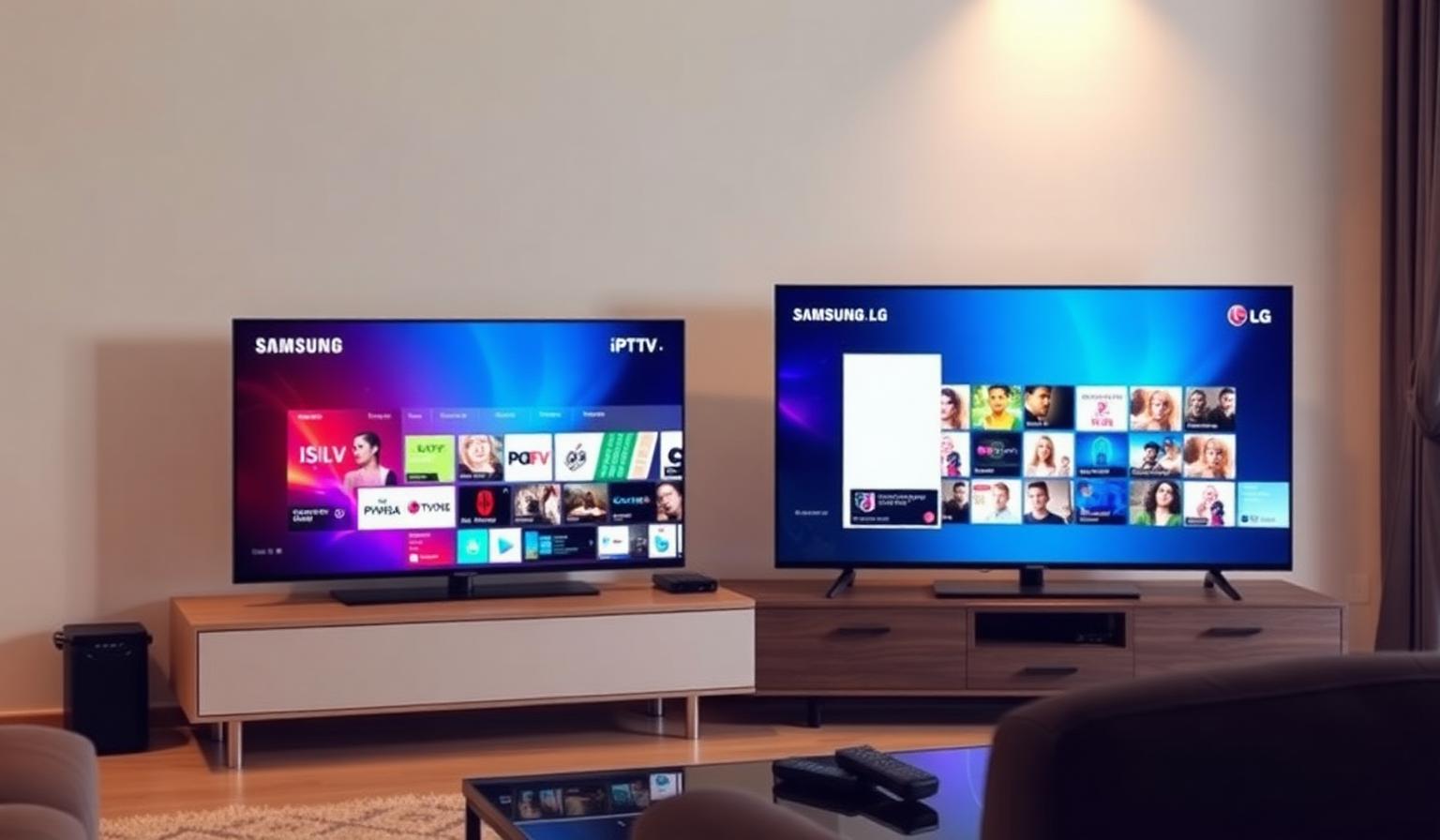
IPTV Setup Guide for Smart TVs (Samsung & LG)
Setting up IPTV on a Smart TV used to require external boxes, cables and complicated workarounds. In 2026, that has completely changed. Modern Samsung Tizen and LG webOS Smart TVs come with built-in app stores, fast processors and full 4K HDR support — everything you need to enjoy live TV, sports and on-demand content directly from your screen. This IPTV setup guide for Smart TVs walks you through the entire process for both Samsung and LG models, step by step. You will learn which apps to install, how to load your playlist, how to enable the EPG (TV guide), and how to fine-tune your picture and network for smooth, buffer-free streaming. Whether you are brand new to IPTV or switching from another device, this guide will get you up and running in minutes.
What You Need Before You Start
Before installing any app, make sure you have the basics ready. A few minutes of preparation saves a lot of troubleshooting later.
- A compatible Smart TV — Samsung (2017 or newer with Tizen) or LG (2017 or newer with webOS).
- A stable internet connection — at least 15 Mbps for HD, 35+ Mbps for 4K.
- An active IPTV subscription from a legitimate provider.
- Your playlist details — typically an M3U URL or Xtream Codes login (server URL, username, password).
- Optional: an XMLTV EPG URL for the TV guide.
Best IPTV Apps for Samsung & LG Smart TVs
Samsung and LG do not natively support sideloading like Android TV, which means you should stick to the official, store-approved IPTV players. The good news is that several of them are excellent.
Smart IPTV (SIPTV)
One of the longest-running and most reliable IPTV apps for both Samsung and LG. You install it from the official store and add your playlist via the SIPTV web portal. It offers a 7-day free trial and a small one-time activation fee.
Set IPTV
A lightweight, stable alternative that runs smoothly even on older Smart TVs. It supports M3U playlists and XMLTV EPG, with a clean interface that works well with the TV remote.
IPTV Smarters Lite
A trimmed-down version of IPTV Smarters Pro built for Tizen and webOS. It supports both M3U playlists and Xtream Codes login, and offers a familiar interface across phones, tablets and TVs.
OTT Player
Available on Samsung, LG and most major Smart TV platforms. You upload your playlist once to a free cloud account and it syncs automatically across all your devices.
Step-by-Step: IPTV Setup on a Samsung Smart TV
- Connect your TV to the internet via Wi-Fi or Ethernet (Ethernet is recommended).
- Open the Samsung Apps store from the home screen.
- Search for "Smart IPTV" (or Set IPTV / IPTV Smarters Lite) and install it.
- Launch the app and note the MAC address shown on screen.
- Visit the app's web portal from your phone or computer (e.g. siptv.app).
- Enter your TV's MAC address and upload your M3U playlist URL.
- Reopen the app on your TV — your channels will load automatically.
- Add your XMLTV EPG URL in the app settings to enable the TV guide.
Step-by-Step: IPTV Setup on an LG Smart TV
- Connect your LG TV to the internet using a wired or wireless connection.
- Open the LG Content Store from the home menu.
- Search and install Smart IPTV, Set IPTV or IPTV Smarters Lite.
- Launch the app and copy down the MAC address displayed.
- Open the app's web upload page on another device.
- Submit your MAC address and playlist URL.
- Restart the app on your LG TV — your channel list appears.
- Configure the EPG by entering your XMLTV link in the settings menu.
If you also use an Android-based device, our Android TV install guide and top IPTV players roundup cover the best apps and configuration tips for every platform.
Pros and Cons of Native Smart TV IPTV Setup
Pros
- No external device, cables or HDMI ports required.
- Apps are official and safe (no sideloading).
- Native 4K HDR and Dolby support on modern panels.
- Single remote for everything.
- Quick boot and instant channel access.
Cons
- Fewer player options than Android TV.
- Some apps charge a small activation fee.
- Older Smart TVs (pre-2017) may not support all apps.
- Limited customization compared to TiviMate.
Tips and Best Practices
- Use Ethernet instead of Wi-Fi whenever possible — it eliminates most buffering issues.
- Change DNS on your TV to 1.1.1.1 or 8.8.8.8 for faster playlist and EPG loading.
- Keep the app updated from the official store to get codec and EPG fixes.
- Enable Auto-Motion Plus / TruMotion carefully — for live sports, lower the smoothing to avoid the "soap opera" effect.
- Organize favorites instead of scrolling through thousands of channels.
- Reboot your router weekly to refresh DNS and connection stability.
Troubleshooting Common Issues
- Channels not loading: verify the playlist URL and try reloading it from the app's web portal.
- App keeps freezing: clear the app cache from the TV settings or reinstall it.
- EPG missing: check that the XMLTV URL is correct and that your provider's EPG server is online.
- Frequent buffering: switch to Ethernet, lower stream quality, or change DNS.
For a deeper troubleshooting walkthrough, see our IPTV not working — problems and fixes guide.
Conclusion
Setting up IPTV on a Samsung or LG Smart TV in 2026 is genuinely simple. With native apps like Smart IPTV, Set IPTV and IPTV Smarters Lite available straight from the official stores, you can be watching live TV in HD or 4K within minutes — no extra hardware, no sideloading, no fuss. Combine a quality IPTV subscription with a stable internet connection and a few small tweaks like Ethernet and DNS optimization, and you get a streaming experience that rivals (and often surpasses) traditional cable. Take your time on the first setup, save your favorites, and enjoy the flexibility of having all your channels in one elegant interface on your big screen.
Ready to start streaming?
Explore our subscription plans and get instant access to live TV, sports and a huge VOD library on any device.
View IPTV PlansFrequently Asked Questions
More from the blog
Complete guide to high quality streaming with VOD — best devices, internet speed needs, setup steps, pros & cons, and expert tips for the ultimate on-demand experience.
Complete guide to premium 4K streaming for IPTV — best devices, internet speed needs, HDR setup, pros & cons, and expert tips for stunning Ultra HD quality.