No Buffering IPTV: How to Get Smooth Streaming (2026)
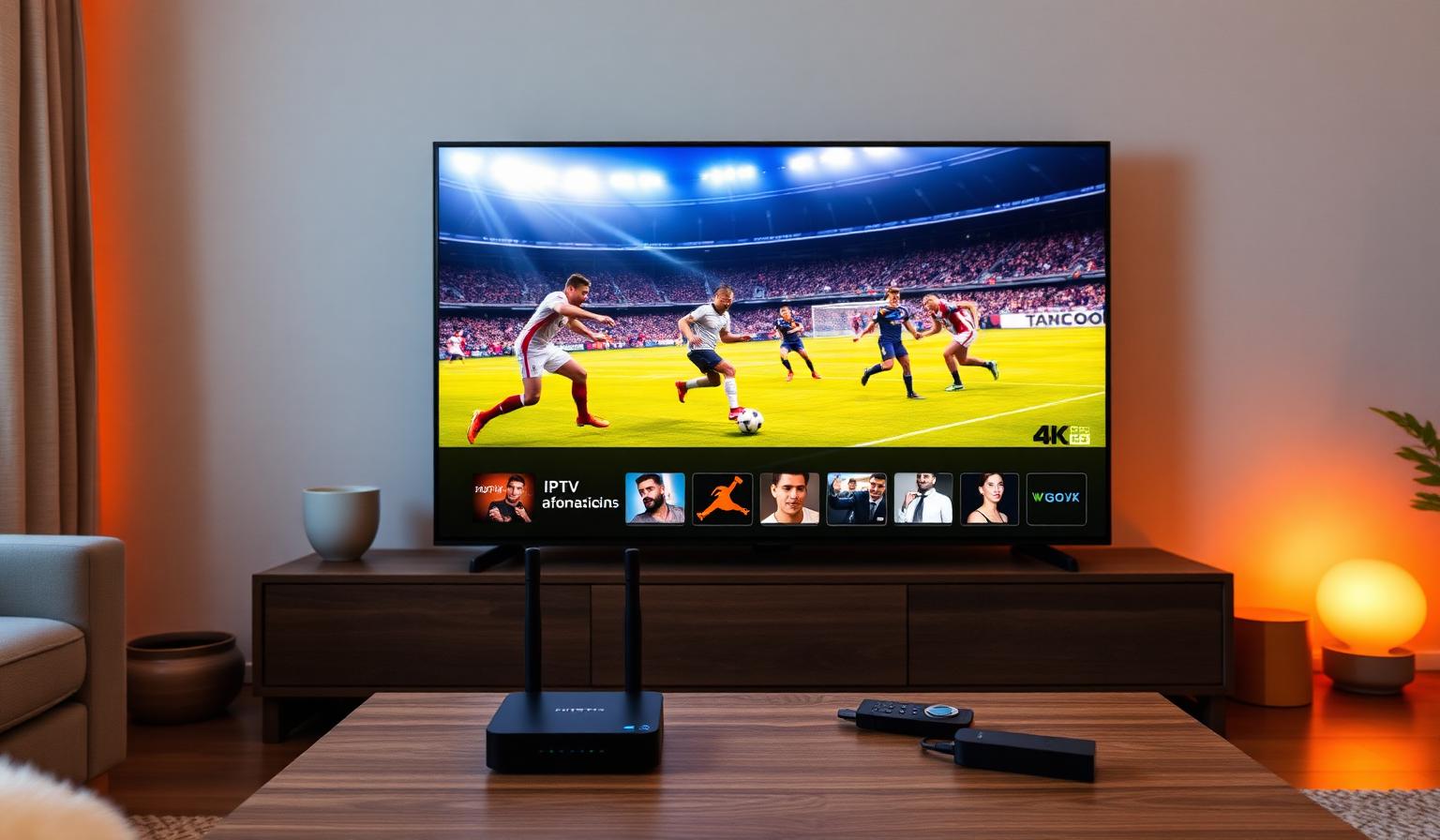
A no buffering IPTV experience is what every viewer wants — channels that load instantly, sports that never freeze in the middle of a goal, and 4K movies that play start to finish without a single pause. The good news is that smooth IPTV streaming is not magic. It comes from a combination of a quality provider, the right player, a healthy internet setup and a few smart device settings. In this guide you will learn exactly what causes IPTV buffering, what a no buffering IPTV setup looks like in 2026, and a step-by-step plan to fix freezing on Smart TV, Firestick, Android and iOS. Whether you stream live sports, news or VOD, these tips will keep your picture smooth.
What Causes IPTV Buffering?
Buffering happens when your player can't load video data fast enough to keep up with playback. The cause is rarely just "slow internet" — usually it's a combination of small issues stacking up. Understanding the most common ones makes them easy to fix:
- Overloaded or distant provider servers
- Wi-Fi interference from neighbors or 2.4 GHz devices
- Slow or congested DNS lookups
- Outdated IPTV app or device firmware
- Player without hardware decoding for 4K
- Too many devices streaming at the same time
What a No Buffering IPTV Setup Looks Like
A smooth setup combines four things working together:
- Strong provider: multiple load-balanced servers and a CDN close to you
- Stable connection: 25 Mbps+ for 4K, ideally wired Ethernet on your main TV
- Modern player: TiviMate, IPTV Smarters Pro or OTT Navigator with hardware decoding
- Tuned device: updated firmware, free storage, optimized DNS
Step-by-Step: How to Get Smooth Streaming
1. Test Your Internet Speed
Run a speed test on the same device you stream on (Smart TV, Firestick or phone). For HD aim for 10–15 Mbps, for 4K aim for 25 Mbps or higher. Test both download speed and ping — high ping is often the hidden cause of buffering.
2. Switch to Ethernet (or 5 GHz Wi-Fi)
Wired Ethernet is the single biggest upgrade for your main TV. If that's not possible, move to your router's 5 GHz Wi-Fi band — it's faster and less crowded than 2.4 GHz. Place the router in the same room as the TV when you can.
3. Restart Your Router and Streaming Device
A weekly reboot clears DNS caches, frees memory and refreshes connections. Unplug your router for 30 seconds, then restart your Firestick or Smart TV from the system menu.
4. Use a Player That Handles Buffers Well
Premium players like TiviMate, IPTV Smarters Pro and OTT Navigator let you tweak buffer size and decoder settings. Increase the buffer slightly if you have a fast but slightly unstable connection.
5. Change DNS for Faster Lookups
Switching to a fast public DNS (1.1.1.1 from Cloudflare or 8.8.8.8 from Google) can dramatically improve channel loading times. Set it on your router so every device benefits at once.
6. Close Background Apps
Other devices downloading updates, cloud backups or game patches can choke your connection. Pause them while watching live sports or 4K content.
7. Keep Your App and Device Updated
New IPTV app versions ship performance fixes regularly. The same goes for your Smart TV, Firestick or Android box firmware — outdated software is a common buffering cause.
Pros and Cons of a Premium No-Buffering Setup
Pros
- • Smooth HD and 4K UHD without freezing
- • Fast channel switching during live events
- • Reliable performance during prime time
- • Better sound sync and stable EPG
- • Works equally well on Smart TV and Firestick
Cons
- • Requires a stable internet plan (25 Mbps+ for 4K)
- • Wired setup needs a small one-time install
- • Cheaper devices may struggle with 4K decoding
- • Not all free playlists deliver consistent quality
Best Practices for Smooth IPTV Streaming
- Use a dual-band router (Wi-Fi 6 if possible) and keep firmware updated.
- Place the router on a shelf, not on the floor or behind the TV.
- Limit simultaneous 4K streams to what your plan supports.
- Pick a player with hardware decoding for cooler, smoother playback.
- Pair your subscription with a reliable DNS service.
For deeper troubleshooting, our buffering troubleshooting guide walks through every fix in detail.
Tips for Different Devices
Smart TV (Samsung / LG)
- Use Ethernet whenever possible.
- Clear app cache from the TV's settings menu.
- Disable energy-saving modes that throttle the network.
Amazon Firestick
- Use a 4K Max Firestick for high-bitrate streams.
- Keep at least 1 GB of free storage.
- Restart the device weekly from the system menu.
Android TV / Box
- Use TiviMate or OTT Navigator with hardware decoder enabled.
- Clear app data once a month to keep the EPG snappy.
Conclusion
A truly no buffering IPTV experience is the result of small, smart choices — a quality provider with strong servers, a stable internet connection, the right player and a few simple settings on your device. Apply the steps in this guide and you'll notice instant channel loading, smooth 4K playback and zero freezing during prime-time sports. Streaming is at its best when it just works, and a clean, optimized setup is what makes that happen.
Want a streaming service built around stable performance and smooth playback? Have a look at our subscription plans and pick what fits your devices — no pressure, just clear options.
Ready to start streaming?
Explore our subscription plans and get instant access to live TV, sports and a huge VOD library on any device.
View IPTV PlansFrequently Asked Questions
More from the blog
Complete guide to high quality streaming with VOD — best devices, internet speed needs, setup steps, pros & cons, and expert tips for the ultimate on-demand experience.
Complete guide to premium 4K streaming for IPTV — best devices, internet speed needs, HDR setup, pros & cons, and expert tips for stunning Ultra HD quality.