How to Fix IPTV Buffering Issues (Complete Guide)
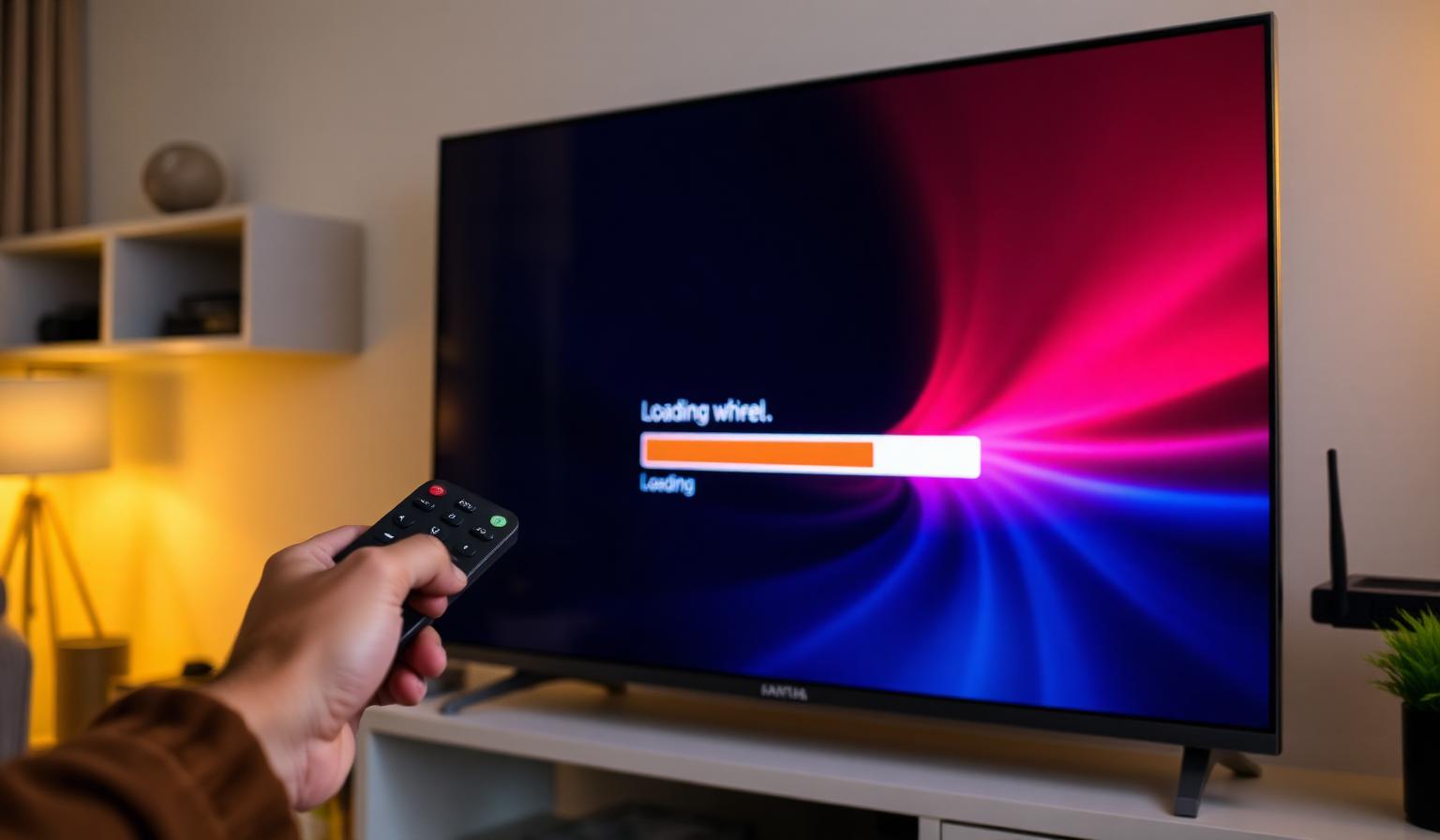
Few things ruin a good streaming session faster than IPTV buffering. Just as the match heats up or the movie hits its key scene, the screen freezes, the loading wheel spins, and the moment is gone. The good news is that buffering is almost always fixable — and you usually don't need to be a network engineer to solve it. In this complete guide, we'll break down exactly why IPTV streams buffer, how to diagnose the real cause in just a few minutes, and the step-by-step fixes that work on Smart TVs, Firestick, Android boxes, and mobile devices. You'll also get a clear list of best practices so smooth playback becomes the rule rather than the exception in your living room.
What Causes IPTV Buffering?
Buffering happens when your streaming app can't download the next chunk of video fast enough to keep up with playback. The player runs out of data in its buffer, freezes, and waits. The cause is rarely a single thing — it's usually a weak link in a chain that includes your internet connection, router, device, app, and the provider's server.
The Most Common Culprits
- Unstable internet: short drops or jitter matter more than peak speed.
- Wi-Fi congestion: walls, distance, and crowded 2.4GHz channels reduce throughput.
- Slow DNS: default ISP DNS can delay stream loading and channel switching.
- Overloaded device: too many background apps eat RAM and CPU.
- App cache buildup: bloated cache slows down the IPTV player over time.
- Stream bitrate too high: 4K on a 10 Mbps line will always buffer.
- ISP throttling: some providers slow down streaming traffic at peak hours.
- Server-side load: shared servers can struggle during major live events.
Step-by-Step Guide: How to Fix IPTV Buffering
Work through these steps in order. In most cases you'll have stable playback before reaching the end of the list — no advanced tools required.
1. Run a Real-World Speed Test
Test internet speed directly on the device you stream from, not on your laptop in another room. Aim for at least 15 Mbps for HD and 35 Mbps for 4K. Equally important: check ping and jitter — values under 30 ms ping and under 10 ms jitter mean a stable line.
2. Switch from Wi-Fi to Ethernet
A wired connection eliminates the biggest single source of buffering. If your TV or streaming box is near the router, plug it in with an Ethernet cable. If not, a powerline adapter or mesh node placed close to the TV will get you most of the way there.
3. Restart the Router and Device
Power off your router for 30 seconds, then power it back on. Fully restart your Smart TV, Firestick, or Android box (don't just put it to sleep). This single step clears stale connections and resolves a surprising number of buffering issues.
4. Change Your DNS
Default ISP DNS servers can be slow or congested. Switch to a faster public DNS in your router or device network settings:
- Cloudflare: 1.1.1.1 and 1.0.0.1
- Google: 8.8.8.8 and 8.8.4.4
5. Clear the IPTV App Cache
Over time, IPTV players accumulate cache that slows them down. On Firestick or Android TV, go to Settings → Apps → your IPTV player → Clear cache. Restart the app afterward and reload your playlist.
6. Lower the Stream Quality
If your connection can't sustain 4K or HD, the player will keep buffering. Drop one quality level — most apps let you pick between 4K, FHD, HD, and SD. A steady HD stream beats a stuttering 4K one every time.
7. Test with a VPN
If buffering only happens at peak hours, your ISP may be throttling streaming traffic. A reputable VPN with a nearby server can bypass that. If performance noticeably improves with the VPN on, throttling was likely the cause.
8. Update App and Firmware
Outdated IPTV players and old TV firmware often misread modern streams. Update both to the latest version, then restart the device. If issues persist, uninstall and reinstall the app cleanly.
Pros and Cons of Fixing Buffering Yourself
Pros
- • Most fixes take less than five minutes.
- • No need to wait on hold for support.
- • You learn how your streaming setup actually works.
- • Long-term improvements, not one-time patches.
Cons
- • Some causes (server load, ISP issues) are out of your control.
- • Wrong network settings can briefly make things worse.
- • Older hardware may have limits no fix can overcome.
Best Practices for Smooth IPTV Streaming
- Use Ethernet for your main TV whenever possible.
- Keep your router in an open, central location — not inside a cabinet.
- Prefer the 5GHz Wi-Fi band for streaming devices.
- Restart your router once a week to clear stale memory.
- Match stream quality to your real bandwidth — don't force 4K on a slow line.
- Keep firmware and IPTV apps updated.
- Close background apps before starting a long stream.
- Have a backup IPTV player installed in case your main app misbehaves.
Device-Specific Tips
Each platform has its own quirks. Firestick users should regularly clear cache and avoid overloading the home screen — see our Firestick IPTV setup guide. Android TV users get the smoothest results with TiviMate or IPTV Smarters Pro — full walkthrough in our Android TV beginner guide. And if you're still picking the right app, check our roundup of the best IPTV apps for Android and Firestick.
When to Contact Your Provider
If you've tried every step above and buffering continues, contact your provider with specific details: which channels fail, the time of day, your device, your internet speed, and whether other streaming apps work normally. Clear information leads to faster fixes — vague reports lead to long support tickets.
Conclusion
IPTV buffering is almost always solvable. The most common causes — weak Wi-Fi, slow DNS, overloaded apps, and mismatched stream quality — can be fixed in minutes with the steps above. Pair those fixes with the best-practices checklist and you'll enjoy smooth, reliable live TV on every device in your home. A great streaming experience starts with a stable network, well-maintained hardware, and a quality provider that invests in solid infrastructure.
Ready to start streaming?
Explore our subscription plans and get instant access to live TV, sports and a huge VOD library on any device.
View IPTV PlansFrequently Asked Questions
More from the blog
Complete guide to high quality streaming with VOD — best devices, internet speed needs, setup steps, pros & cons, and expert tips for the ultimate on-demand experience.
Complete guide to premium 4K streaming for IPTV — best devices, internet speed needs, HDR setup, pros & cons, and expert tips for stunning Ultra HD quality.