How to Stream TV Channels Online in 2026
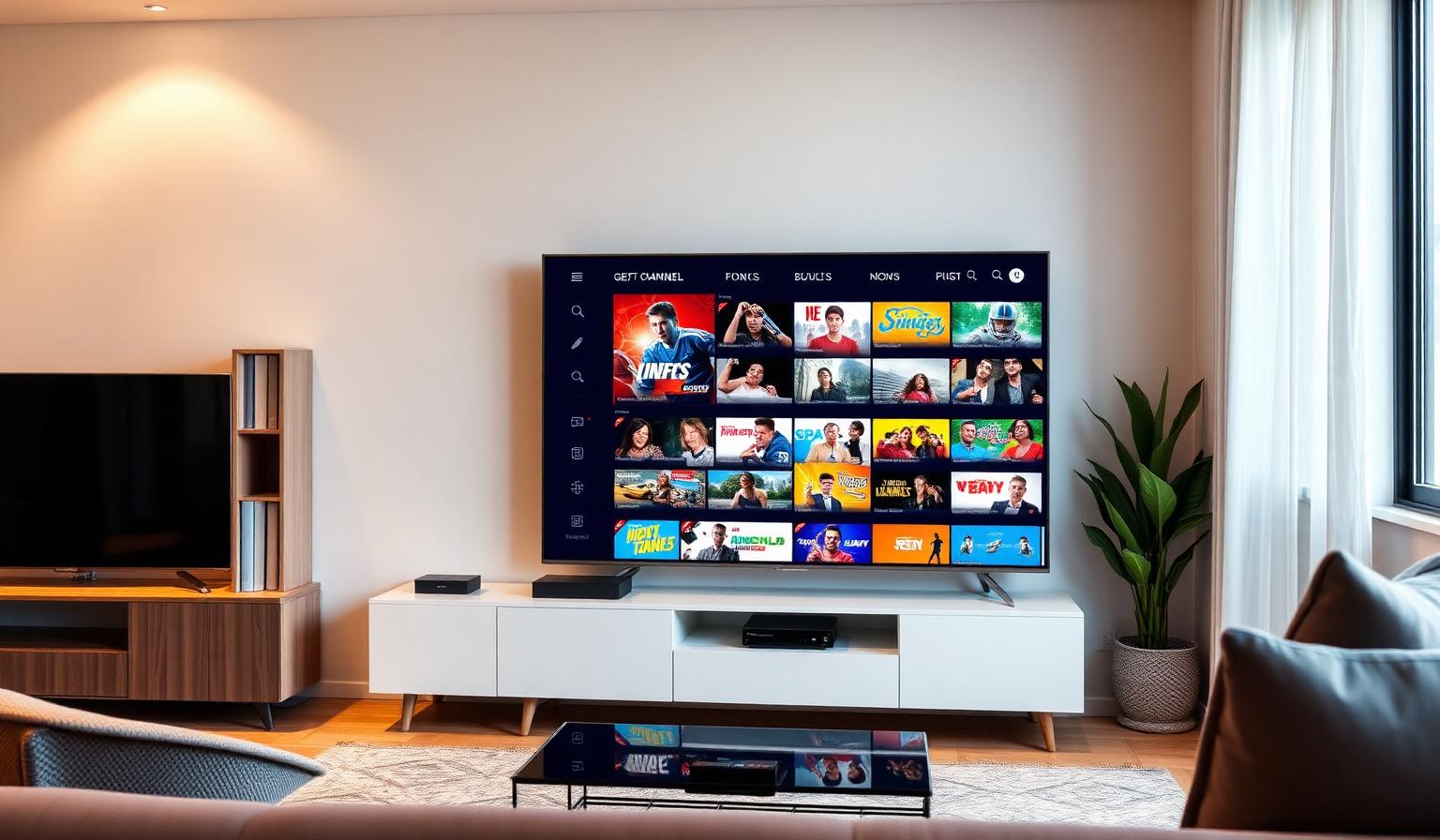
The way we watch television has transformed dramatically over the past decade. No longer bound to cable boxes or satellite dishes, millions of viewers now prefer to stream TV channels online using Smart TVs, streaming sticks, mobile devices and laptops. Whether you want live sports, breaking news, blockbuster movies or international programming, streaming gives you instant access to thousands of channels from anywhere with an internet connection. In this complete 2026 guide, we will explore the best devices, apps, methods and tips to help you stream TV channels effortlessly.
What Does It Mean to Stream TV Channels Online?
Streaming TV channels online means watching live or on-demand television content over the internet rather than through traditional terrestrial, cable or satellite broadcast signals. When you stream, your device receives video data in real time from servers located around the world. This approach offers unmatched flexibility: you can watch on a Smart TV in your living room, a tablet on your commute, or a laptop in a hotel room thousands of miles from home.
In 2026, the technology has matured to the point where streaming quality rivals and often exceeds traditional broadcasting. With 4K HDR streams, surround sound support, instant channel switching and cloud-based recording, online TV streaming delivers a viewing experience that cable simply cannot match.
Best Devices to Stream TV Channels
Choosing the right device is the first step toward a great streaming experience. Here are the most popular options in 2026:
Smart TVs
Modern Smart TVs from Samsung, LG, Sony, TCL and Hisense come with built-in streaming platforms like Tizen, webOS, Google TV and Roku OS. You can download IPTV apps, streaming services and broadcaster apps directly without any additional hardware. A Smart TV is the simplest way to stream TV channels if you are setting up a new entertainment center.
Streaming Sticks and Boxes
Amazon Firestick, Google Chromecast with Google TV, Apple TV 4K and Roku Streaming Stick are compact, affordable devices that plug into any HDMI port. They turn ordinary TVs into powerful streaming hubs with access to hundreds of apps. The Firestick, in particular, is a favorite among IPTV users because of its flexibility and extensive app library.
Smartphones and Tablets
iPhones, iPads and Android devices are perfect for streaming on the go. With apps like GSE Smart IPTV, IPTV Smarters Pro and VLC, you can carry live TV in your pocket. Mobile streaming is ideal for commuters, travelers and anyone who wants to catch live sports or news while away from home.
Computers and Laptops
Windows, macOS and Linux computers can stream TV channels through web browsers or dedicated apps. VLC Media Player supports M3U playlists on all desktop platforms, while browser-based players require no installation at all. Laptops are especially useful for multitaskers who want to watch TV while working.
Top Methods to Stream TV Channels Online
There are several reliable ways to access live TV channels online. Each method has its own strengths depending on your content preferences and technical comfort level.
IPTV Subscription Services
Internet Protocol Television (IPTV) delivers live TV channels through your internet connection. With a subscription from a reputable provider, you receive an M3U playlist or Xtream Codes login that works across multiple apps and devices. IPTV typically offers the widest selection of international channels, sports networks and VOD content. To learn more, read our complete IPTV subscription guide.
Dedicated Streaming Platforms
Services like YouTube TV, Hulu + Live TV, Sling TV and fuboTV bundle live channels into subscription packages. These platforms offer reliable streams, cloud DVR and official apps on virtually every device. They are ideal for viewers who want a polished, cable-like experience without the hardware hassle.
Free Ad-Supported Streaming (FAST)
FAST platforms like Pluto TV, Tubi, Freevee and Roku Channel offer hundreds of live linear channels completely free, supported by advertisements. While the channel selection is more limited than paid options, FAST is a great way to access news, classic movies and general entertainment at no cost.
Step-by-Step Guide to Streaming TV Channels
Getting started with online TV streaming is straightforward. Follow these steps to begin watching live channels today:
Step 1: Choose Your Streaming Method
Decide whether you want an IPTV subscription for maximum channel variety, a mainstream streaming platform for simplicity, or free FAST channels to test the waters. Your choice determines which apps and devices you will need.
Step 2: Select and Set Up Your Device
If you already own a Smart TV, you are ready to download apps. Otherwise, purchase a streaming stick or prepare your phone, tablet or computer. Connect your device to your home Wi-Fi and ensure your internet speed meets the minimum requirements for your chosen video quality.
Step 3: Install a Compatible Streaming App
Download the appropriate app for your chosen method. For IPTV, popular choices include TiviMate, IPTV Smarters Pro and GSE Smart IPTV. For mainstream services, install the official app from your device store. For free FAST channels, download Pluto TV, Tubi or Freevee.
Step 4: Log In or Add Your Playlist
If you chose a streaming platform, sign in with your account credentials. If you chose IPTV, enter your M3U playlist URL or Xtream Codes API details into your player app. Wait for the app to load and organize your channels into categories.
Step 5: Explore and Start Watching
Browse the channel list, add favorites to a quick-access list, and explore the EPG (Electronic Program Guide) to see what is currently airing and what is coming up next. Tap any channel to start streaming instantly.
Pros and Cons of Streaming TV Channels Online
Advantages
- Watch live TV anywhere with an internet connection
- No long-term contracts or installation appointments
- Access thousands of international and niche channels
- Works on Smart TVs, phones, tablets, laptops and streaming sticks
- Often significantly cheaper than traditional cable packages
- On-demand libraries and cloud DVR included with many services
- 4K HDR and surround sound support on modern platforms
Disadvantages
- Requires a stable internet connection to function
- Buffering or quality drops during network congestion
- Some channels may experience occasional downtime
- App interfaces vary in quality and ease of use
- Free options usually include advertisements
- Learning curve for first-time users setting up IPTV
- Not all local channels may be available on every platform
Tips and Best Practices for Streaming TV Channels
Follow these expert tips to get the most out of your online TV streaming experience:
Optimize Your Internet Connection
- Use a wired Ethernet connection for Smart TVs and streaming boxes when possible.
- If using Wi-Fi, connect to a 5GHz network for less interference and better speeds.
- Position your router centrally and avoid physical obstructions.
- Limit bandwidth-heavy activities (downloads, video calls) while streaming.
- Run regular speed tests to confirm your connection meets streaming requirements.
Choose the Right App Settings
- Enable hardware acceleration in your IPTV app for smoother playback.
- Adjust buffer size if you experience frequent pauses — increase it on slower connections.
- Set the default stream quality to "auto" so the app adapts to your bandwidth.
- Enable EPG auto-refresh to keep your program guide accurate and up to date.
- Create custom channel groups and favorites for faster daily navigation.
Enhance Your Mobile Experience
- Use headphones or Bluetooth speakers for better audio quality on mobile.
- Enable picture-in-picture mode on supported devices for multitasking.
- Download offline content where available before traveling.
- Cast to a larger screen using AirPlay, Chromecast or screen mirroring.
- Monitor your data usage if streaming on mobile networks with limited plans.
Common Issues and Quick Fixes
Stream Keeps Buffering
Lower the stream quality in your app settings, switch to a 5GHz Wi-Fi network, restart your router, or test your internet speed. If the issue persists, your IPTV server may be overloaded — contact your provider.
Channels Won't Load
Double-check your M3U URL or Xtream Codes credentials. Remove any extra spaces. Verify your subscription is active. Try reloading the playlist in your app or switching to a backup playlist if your provider offers one.
App Crashes or Freezes
Clear the app cache, update to the latest version, or reinstall the app. Restart your device to free up memory. If the problem continues, try a different IPTV player app.
Poor Video Quality
Ensure your internet speed meets the minimum for your chosen resolution. Check that your TV or monitor is set to the correct input and HDMI port. Update your streaming device's firmware and verify HDR settings are configured properly.
Conclusion
Learning how to stream TV channels online opens up a world of entertainment that fits your lifestyle. With the right device, a reliable internet connection and a quality streaming app, you can access live sports, news, movies and international programming from virtually anywhere. Whether you choose an IPTV subscription for maximum channel variety, a mainstream platform for convenience, or free FAST services to supplement your viewing, the tools and knowledge in this guide will help you build the perfect home entertainment setup in 2026.
For more specific guidance, explore our guides on the best IPTV apps for 2026 and how to set up IPTV on Firestick. Happy streaming!
Image suggestions for this post
- Living room streaming setup: Modern living room with a large Smart TV showing a live TV channel grid, streaming stick connected, cozy ambient lighting — ALT: "Modern living room with Smart TV displaying live TV channel streaming interface and streaming device on TV stand"
- Mobile streaming on the go: Person watching live sports on a smartphone while commuting on a train, earbuds in, streaming app interface visible — ALT: "Person streaming live TV channels on a smartphone during a commute with IPTV app interface showing sports"
- Multiple devices comparison: Flat lay of Smart TV remote, Firestick, smartphone, tablet and laptop all showing streaming apps — ALT: "Flat lay of multiple streaming devices showing live TV channel apps on Smart TV, Firestick, smartphone, tablet and laptop"
Ready to start streaming?
Explore our subscription plans and get instant access to live TV, sports and a huge VOD library on any device.
View IPTV PlansFrequently Asked Questions
More from the blog
Complete guide to high quality streaming with VOD — best devices, internet speed needs, setup steps, pros & cons, and expert tips for the ultimate on-demand experience.
Complete guide to premium 4K streaming for IPTV — best devices, internet speed needs, HDR setup, pros & cons, and expert tips for stunning Ultra HD quality.