MAG Box IPTV Setup Guide (2026)
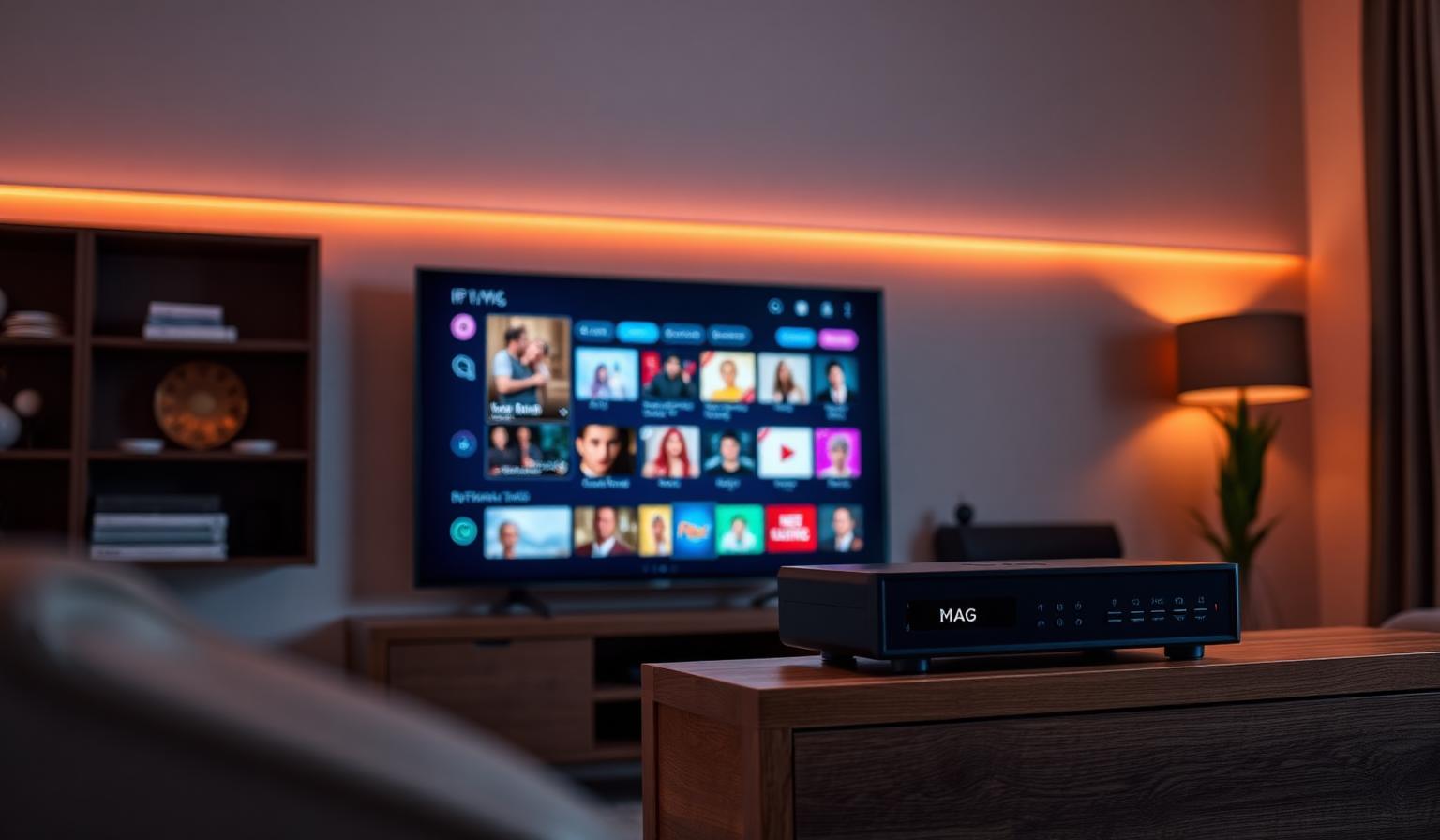
A MAG box is one of the most reliable ways to watch IPTV on any TV in 2026. Made by Infomir, these small set-top boxes were designed specifically for live TV streaming, with a clean Stalker portal interface, fast channel switching and rock-solid stability. You don't need a Smart TV or a Firestick — just an HDMI cable and an internet connection. In this guide you'll learn what a MAG box is, which models are best, how to set up IPTV on a MAG box step by step, and how it compares to Firestick and Smart TV apps. Whether you're new to MAG or upgrading from an older model, this is everything you need to get smooth HD and 4K streaming today.
What Is a MAG Box?
A MAG box is a compact set-top box (STB) built by Infomir for IPTV streaming. It plugs into your TV by HDMI and into the internet by Ethernet or Wi-Fi. Unlike a Smart TV or Firestick, MAG runs a dedicated IPTV operating system with a built-in Stalker (Ministra) portal — the same interface used by many IPTV providers worldwide. You enter a portal URL once, and the box loads your full channel list, EPG and VOD library automatically.
Best MAG Box Models in 2026
- MAG 524 / 524W3 — popular all-rounder, 4K UHD, HEVC, dual-band Wi-Fi
- MAG 540 / 540W3 — Linux 4.9, 4K HDR, fast UI, built-in Bluetooth
- MAG 544 / 544W3 — flagship 2026 model, 4K HDR10+, faster CPU
- MAG 425A — Android-based MAG with Google Play access
- MAG 322 / 324 — older HD-only models, still widely supported
Why Choose a MAG Box?
- Designed specifically for IPTV — no app installs needed
- Stalker portal interface with channel grid, EPG and VOD
- Fast zapping (channel switching usually under 2 seconds)
- Stable performance during prime-time live sports
- 4K UHD and HDR on modern models
- Slim hardware that fits behind any TV
Step-by-Step: How to Set Up IPTV on a MAG Box
1. Connect the Hardware
- Plug the MAG box into the TV using HDMI.
- Connect Ethernet (recommended) or set up Wi-Fi from System Settings → Network.
- Power on the box and wait for the home screen to load.
2. Find Your MAC Address
Many IPTV providers identify your MAG box by its MAC address. Go to Settings → System Settings → About to find it. Send this MAC to your provider when activating your subscription.
3. Add the Portal URL
- Open System Settings → Servers → Portals.
- In Portal 1 URL, paste the URL provided in your welcome email.
- Save the changes and exit to the main menu.
- Reboot the MAG box from Settings → Reboot Portal.
4. Browse and Personalize
After the reboot, the Stalker portal loads with your full channel grid, EPG and VOD sections. Use the remote to:
- Mark favorite channels for quick access
- Sort categories (Sports, News, Movies, Kids)
- Open the EPG to plan your evening
- Adjust video resolution to 4K UHD if your TV supports it
For a wider device comparison, see our guide on the top IPTV players for Smart TVs and the best IPTV apps in 2026.
Pros and Cons of a MAG Box
Pros
- • Built specifically for IPTV — minimal setup
- • Stable, low-buffering live TV experience
- • Stalker portal looks and feels like real TV
- • 4K UHD on modern models (524 / 540 / 544)
- • Compact hardware that fits anywhere
- • No need for a Smart TV — works on any HDMI screen
Cons
- • Limited app ecosystem (no Netflix, Disney+ on Linux MAG)
- • Provider must support the Stalker / portal format
- • Older models (322/324) are HD only
- • Less flexible than a Firestick or Android TV box
MAG Box vs Firestick vs Smart TV App
- MAG box: best for a pure, simple, "real TV" IPTV experience.
- Firestick: best for flexibility — IPTV plus Netflix, Prime Video, YouTube and more.
- Smart TV app: best when you don't want any extra hardware behind the TV.
Curious which one fits you better? Read our Firestick vs Android box comparison for a full breakdown.
Best Practices for Smooth MAG Streaming
- Use a wired Ethernet connection whenever possible.
- Keep your MAG firmware updated from System Settings.
- Restart the box once a week to refresh memory.
- Set DNS to 1.1.1.1 or 8.8.8.8 for faster channel loading.
- Place the box on a shelf with good airflow to avoid overheating.
If you ever experience freezing, our no-buffering IPTV guide explains every fix step by step.
Tips for First-Time MAG Users
- Buy your MAG box from an authorized Infomir reseller to avoid clones.
- Confirm with your provider that they support the MAG portal format.
- Activate the device by sending your MAC address before pasting the portal URL.
- Save the portal details somewhere safe — you'll need them if you reset the box.
Conclusion
A MAG box is a clean, focused way to enjoy IPTV without the complexity of a full Smart TV or streaming stick. With a quick portal setup, fast channel switching and stable 4K playback on modern models, it remains one of the most popular IPTV devices in 2026. If you want streaming that just feels like normal TV — turn it on, press a button, watch — a MAG box is hard to beat.
Already have a MAG box? Have a look at our subscription plans and pick the option that fits your household — no pressure, just clear choices.
Ready to start streaming?
Explore our subscription plans and get instant access to live TV, sports and a huge VOD library on any device.
View IPTV PlansFrequently Asked Questions
More from the blog
Complete guide to high quality streaming with VOD — best devices, internet speed needs, setup steps, pros & cons, and expert tips for the ultimate on-demand experience.
Complete guide to premium 4K streaming for IPTV — best devices, internet speed needs, HDR setup, pros & cons, and expert tips for stunning Ultra HD quality.